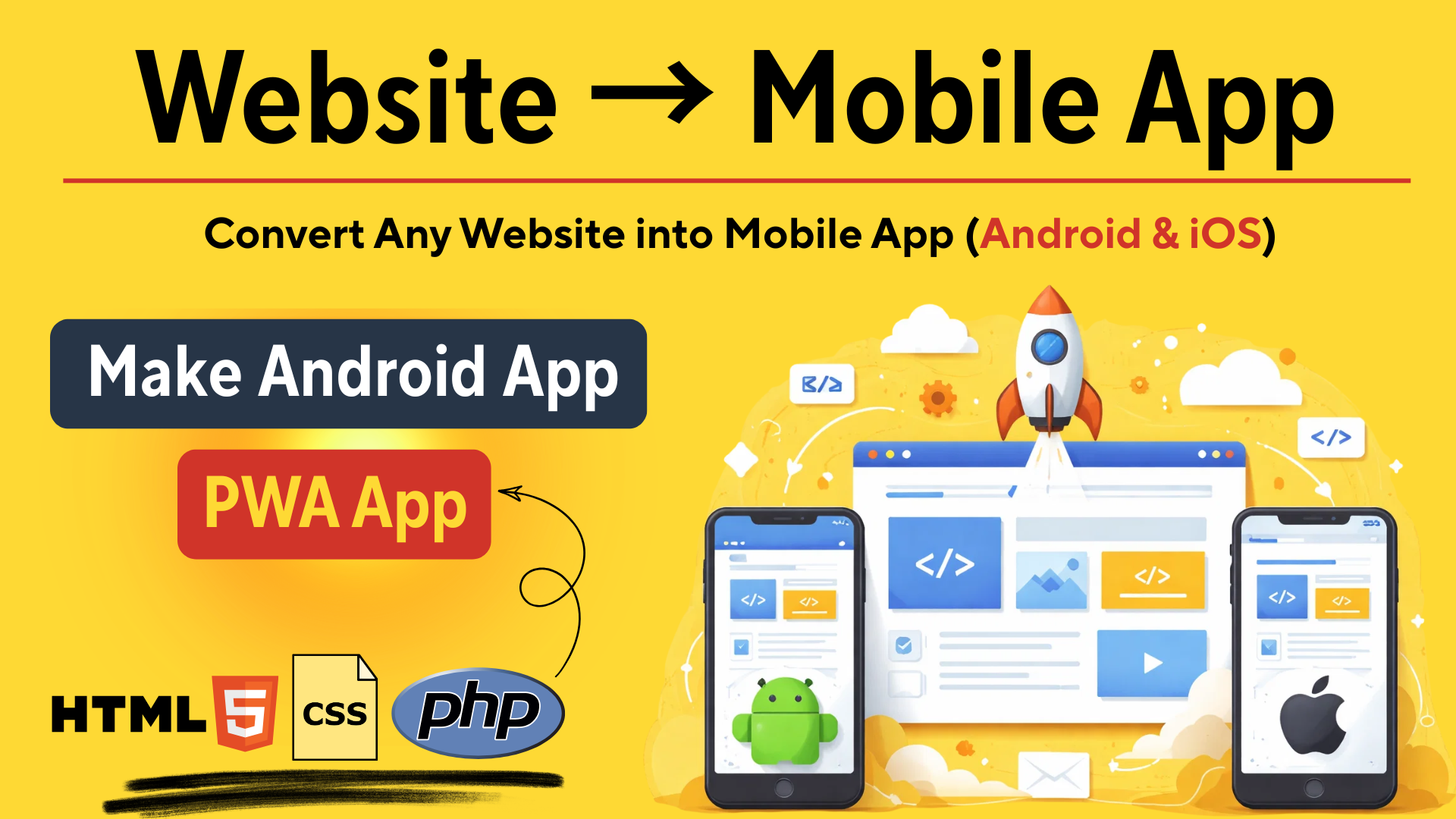
Progressive Web App (PWA) technology allows you to convert any website into a mobile app that works on Android and iOS devices. This method is completely free and does not require Flutter, Java, Swift, or Play Store submission.
Users can install your website as an app directly on their mobile phones, and it will behave like a normal mobile application.
This guide works for:
-
HTML CSS websites
-
PHP websites
-
WordPress websites
-
Laravel projects
-
Any web application
What is a PWA (Progressive Web App)?
A Progressive Web App (PWA) is a website that can be installed on a mobile device and works like a native mobile app.
Features of PWA:
-
Installable on mobile
-
Works on Android and iOS
-
Fast loading
-
App-like interface
-
Works offline (optional)
-
No Play Store required
Requirements
Before starting, make sure:
-
Your website is live on HTTPS (required)
-
You have access to website files
-
You can upload files to your server
Step 1: Create manifest.json File
The manifest file contains information about your app such as name, icon, and theme.
Create a file named:
manifest.json
Example code:
{
"name": "My Website App",
"short_name": "MyApp",
"start_url": "/",
"display": "standalone",
"background_color": "#ffffff",
"theme_color": "#0d6efd",
"orientation": "portrait",
"icons": [
{
"src": "/icons/icon-192.png",
"sizes": "192x192",
"type": "image/png"
},
{
"src": "/icons/icon-512.png",
"sizes": "512x512",
"type": "image/png"
}
]
}
Upload this file to your website root folder.
Step 2: Link manifest.json in Website
Add this line inside your website <head> section:
<link rel="manifest" href="/manifest.json">
Step 3: Add Mobile App Meta Tags
Add these meta tags inside <head>:
<meta name="theme-color" content="#0d6efd">
<meta name="mobile-web-app-capable" content="yes">
<meta name="apple-mobile-web-app-capable" content="yes">
<meta name="apple-mobile-web-app-status-bar-style" content="default">
<meta name="apple-mobile-web-app-title" content="My App">
Step 4: Create Service Worker (sw.js)
Service worker enables install functionality and offline support.
Create file:
sw.js
Example code:
self.addEventListener("install", function(event) {
console.log("Service Worker Installed");
});

self.addEventListener("fetch", function(event) {
});
Upload this file to your root folder.
Step 5: Register Service Worker
Add this code before closing </body> tag:
<script>
if ("serviceWorker" in navigator) {
navigator.serviceWorker.register("/sw.js")
.then(function() {
console.log("Service Worker Registered");
});
}
</script>
Step 6: Add App Icons
Create icons folder:
/icons/
Add:
-
icon-192.png
-
icon-512.png
These icons will be used when installing the app.
Step 7: Test Install App
Open your website in Chrome mobile browser.
You will see:
“Install App” option
OR
Browser install popup
Click install.
Your website is now a mobile app.
Step 8: Add Install Button (Optional)
Example button:
<button id="installBtn">Install App</button>
JavaScript:
let deferredPrompt;

window.addEventListener("beforeinstallprompt", (e) => {
e.preventDefault();
deferredPrompt = e;

document.getElementById("installBtn").style.display = "block";

document.getElementById("installBtn").addEventListener("click", () => {
deferredPrompt.prompt();
});
});
Result
Your website will now:
-
Install on Android
-
Install on iPhone
-
Work like mobile app
-
Show app icon
-
Open in full screen
Advantages of PWA Mobile App
-
Completely free
-
No Play Store required
-
No App Store required
-
Works on all devices
-
Easy to create
-
No special coding required
Who Should Use This?
This is useful for:
-
Developers
-
Students
-
Freelancers
-
Website owners
-
PHP developers
-
WordPress users
Conclusion
PWA is the easiest way to convert any website into a mobile app. You do not need Flutter or native app development. Just create manifest.json and service worker, and your website becomes installable.
This is the best method in 2026 to create mobile apps from websites.